As a general rule, the more modern or sophisticated you make your WordPress website, the more slowly the web pages will load.
However, if you understand exactly what causes WordPress websites to slow down, it is possible to create great-looking professional WordPress websites, that consistently score over 90 out of 100 on a Google Page Speed Insights test.
Speed Test Your Website (And This One!)
Most pages on this website score over 70/100 on mobile, and over 80/100 on desktop, with a load-time speed of less than 1 second. To give it a try for yourself, click here.
Or use the button below to request a speed evaluation of your own website, not only giving you your speed score, but also some actionable tips on how to improve your website’s speed.
Here are a few tips and tricks to help you build a beautifully striking WordPress website that ALSO loads lightning fast.
Firstly, why do WordPress websites tend to be slow?
This is caused by a phenomenon known widely as ‘WordPress Bloat’, where things like Themes, Page Builders, and Plugins all tend to add in masses of CSS code and Javascript that is not required for the website to run.
A bespoke-built website, built from scratch using raw code, in contrast to a WordPress website, will only have the code needed for it to function correctly – no less, and no more.
This means that a bespoke built website’s pages tend to load much faster, simply because there’s less code to load.
So why doesn’t everyone get bespoke websites built instead?
Bespoke-built websites are time-consuming to create and require top web developer talent, so you’ll struggle to find anyone that can build a totally bespoke website for you for less than £5000, or considerably more if it’s a complex website.
Also, bespoke built websites can be costly to maintain. Even small additions or updates can involve a lot of top developer input.
WordPress websites, by contrast, offer 1000s of pre-made templates or ‘Themes’ which can then be further customised with the help of 1000s of ‘Plugins’ that add extra functionality or potentially even change the whole appearance of the website, and the whole process is possible from inside a user-friendly ‘CMS’, meaning little or no technical knowledge on website programming or code is needed to create complex and beautiful websites.
And most of these themes and plugins are free of charge, or at least have a free version, meaning that it’s possible to start up a WordPress website whilst paying for nothing more than the domain name of the website (typically around £15/year), and a fee to a hosting provider for ‘hosting’ the website (typically £100 – £200 a year for basic shared platform). Both of these costs are needed anyhow if you go the bespoke-built website route, making the free WordPress alternative an attractive option to many startup businesses and personal blogs.
Page builders take the WordPress CMS ease-of-use one step further by making it easy to ‘drag and drop’ sections, and displaying everything on a ‘WYSIWIG’ (What You See Is What You Get) interface, so you can see exactly what you are creating without needing to regularly click a ‘preview’ button.
The Most Popular Plugins to Speed Up a WordPress Website
WordPress offers a wide range of plugins designed to improve the site speed and performance. This is a list of the most popular and effective plugins which you can use to optimise your WordPress website to load faster.
1. WP Rocket
WP Rocket is commonly known as the number one best caching plugin for WordPress. It offers a user-friendly interface and powerful features such as page caching, browser caching, lazy loading, database optimisation, and integration with Content Delivery Networks. Unlike many other caching plugins, WP Rocket applies speed optimisation settings automatically, as soon as the plugin is activated.
2. W3 Total Cache
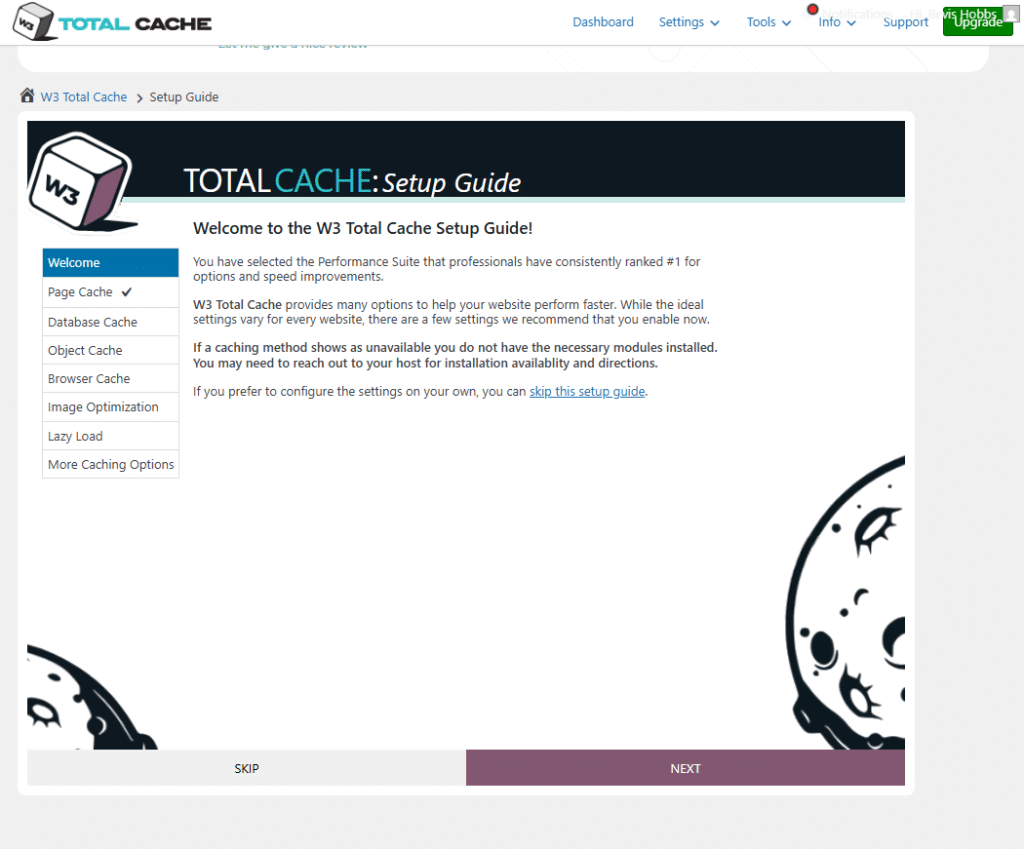
W3 Total Cache is a fully fledged caching plugin, which majorly improves the loading time of your website by using page caching, database caching, object caching, and browser caching. It also supports integration with Content Delivery Networks to distribute your content globally, reducing the loading time of the server and enhancing loading times for international visitors.
3. LiteSpeed Cache
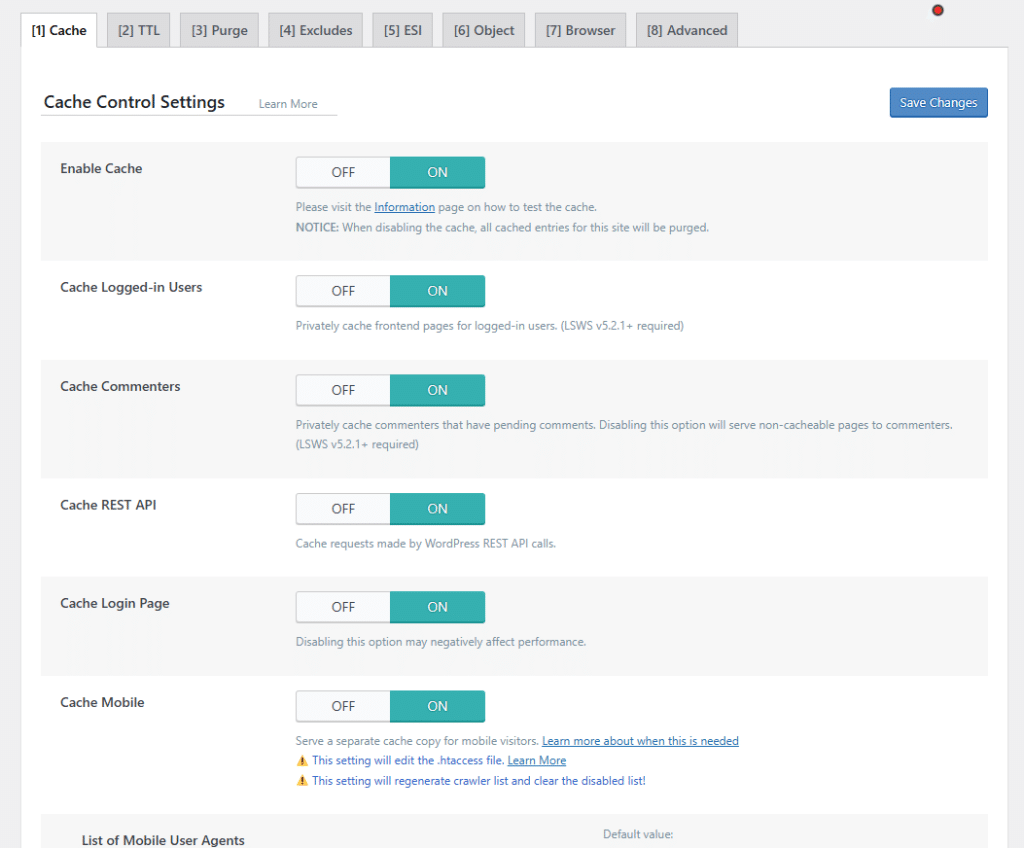
LiteSpeed Cache is a highly efficient caching plugin, which is designed to work with LiteSpeed Web Servers, and also provide loading benefits to other server types. It also offers server-level caching, image optimisation, lazy loading, database cleaning, and CSS and JavaScript minification, all through an easy-to-use dashboard in wordpress.
4. Autoptimize
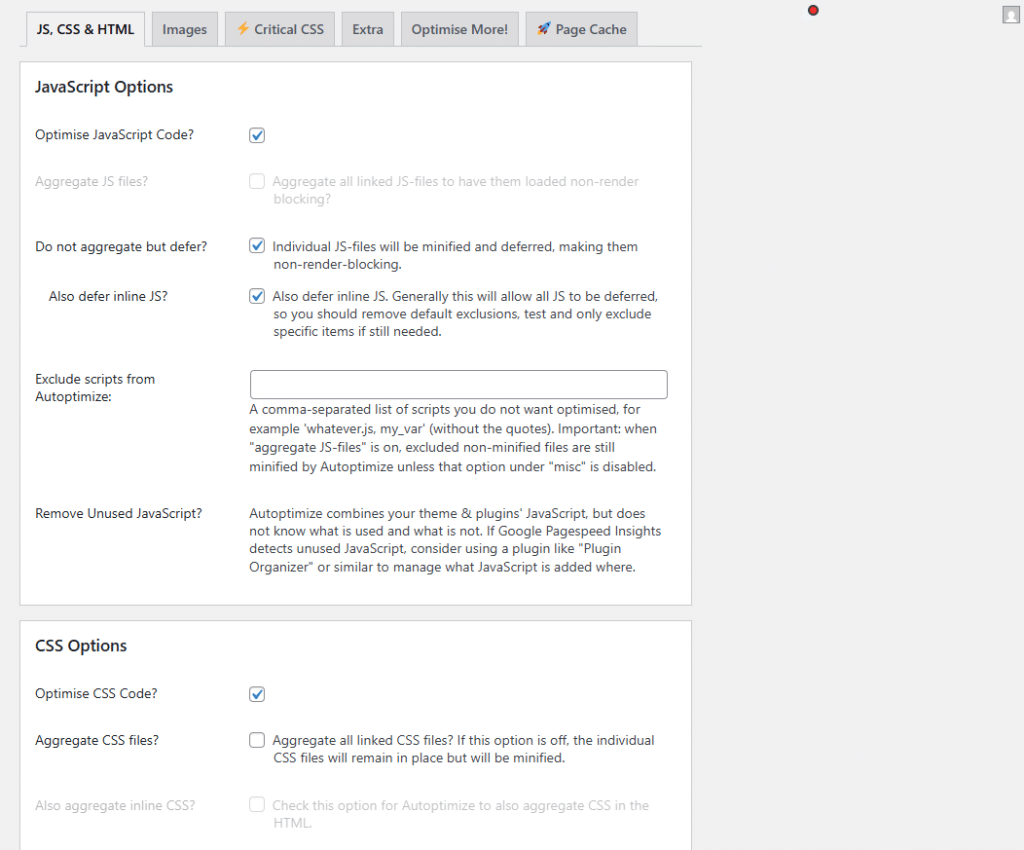
Autoptimize is a lightweight plugin designed to fully optimise all of your website’s code by aggregating, minifying, and caching scripts and styles. It also supports lazy loading of images, async loading of JavaScript, and Google Fonts optimisation. Autoptimize works well alongside caching plugins to further boost the speed of a site.
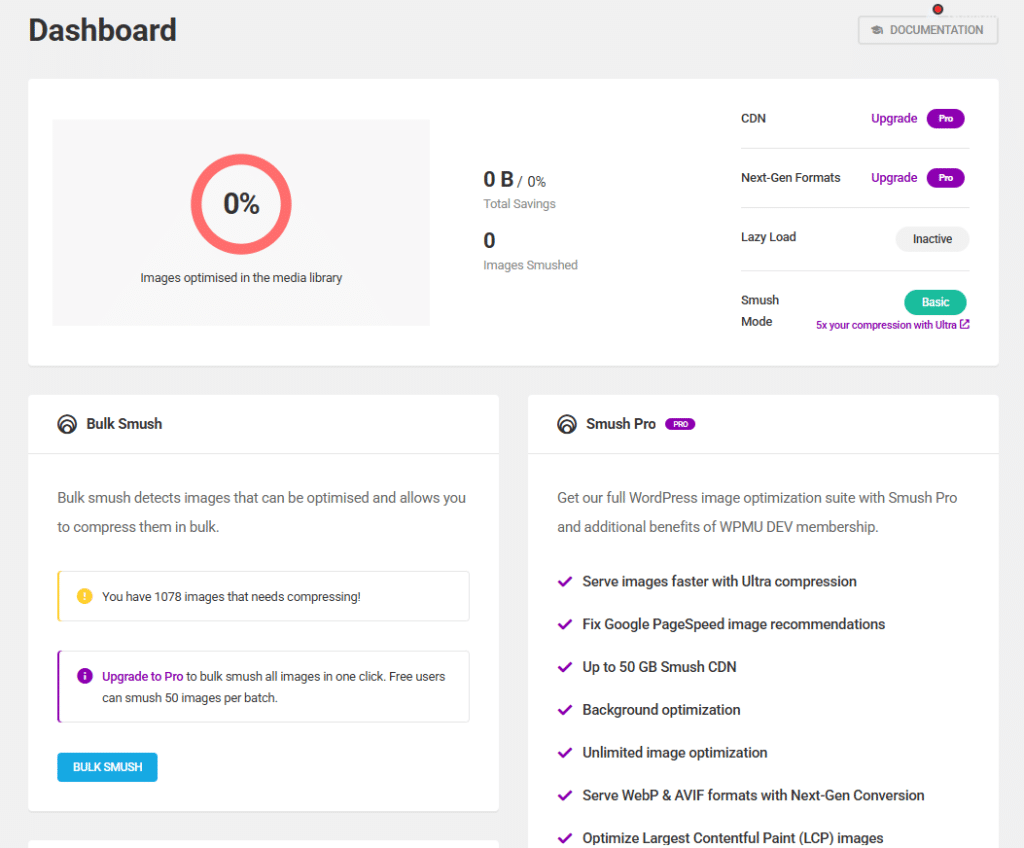
5. Smush (by WPMU DEV)
When optimising images, smush is one of the most popular plugins. It compresses images without reducing the quality, resizes images automatically, and enables lazy loading. Smush also helps in reducing the overall page size, ensuring faster loading times across desktop and mobile devices.
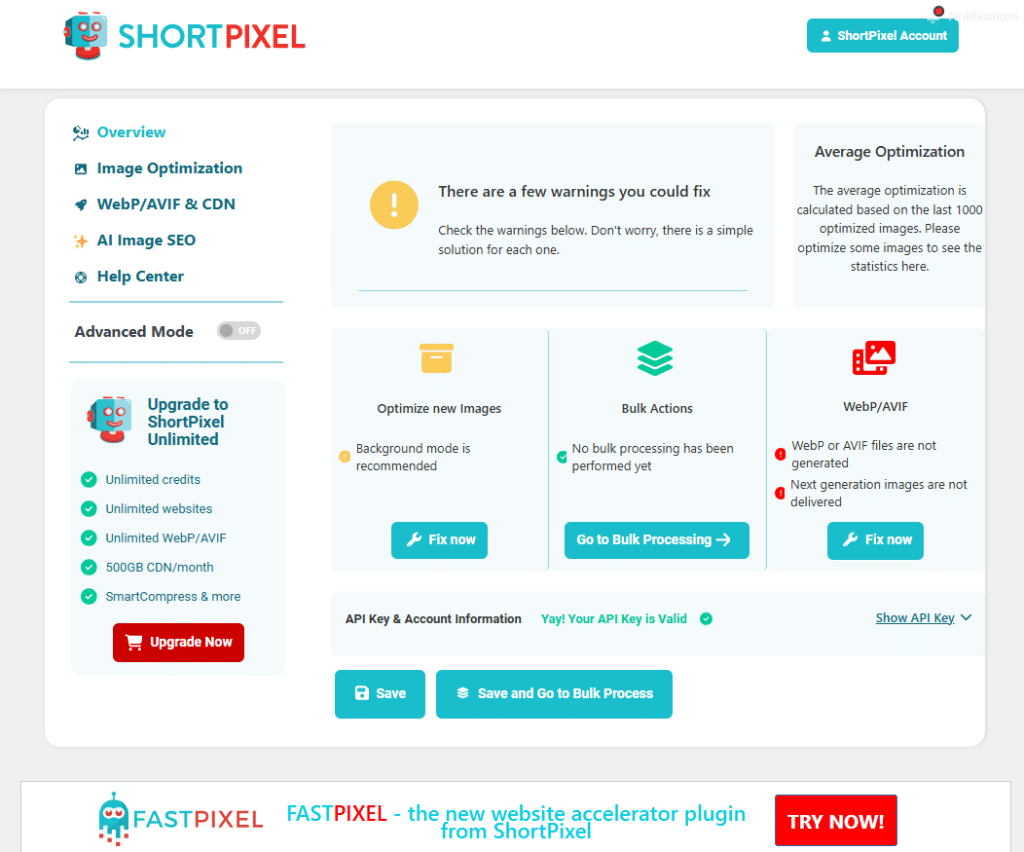
6. ShortPixel Image Optimiser
ShortPixel is a image compression plugin which is very powerful at compressing images. It supports lossy and lossless compression formats, and it also automatically optimises images when uploaded. As well as that it can also compress existing images in bulk, drastically speeding up the process of optimising images. ShortPixel improves the speed of your website by significantly reducing the image file sizes while maintaining a visual quality.
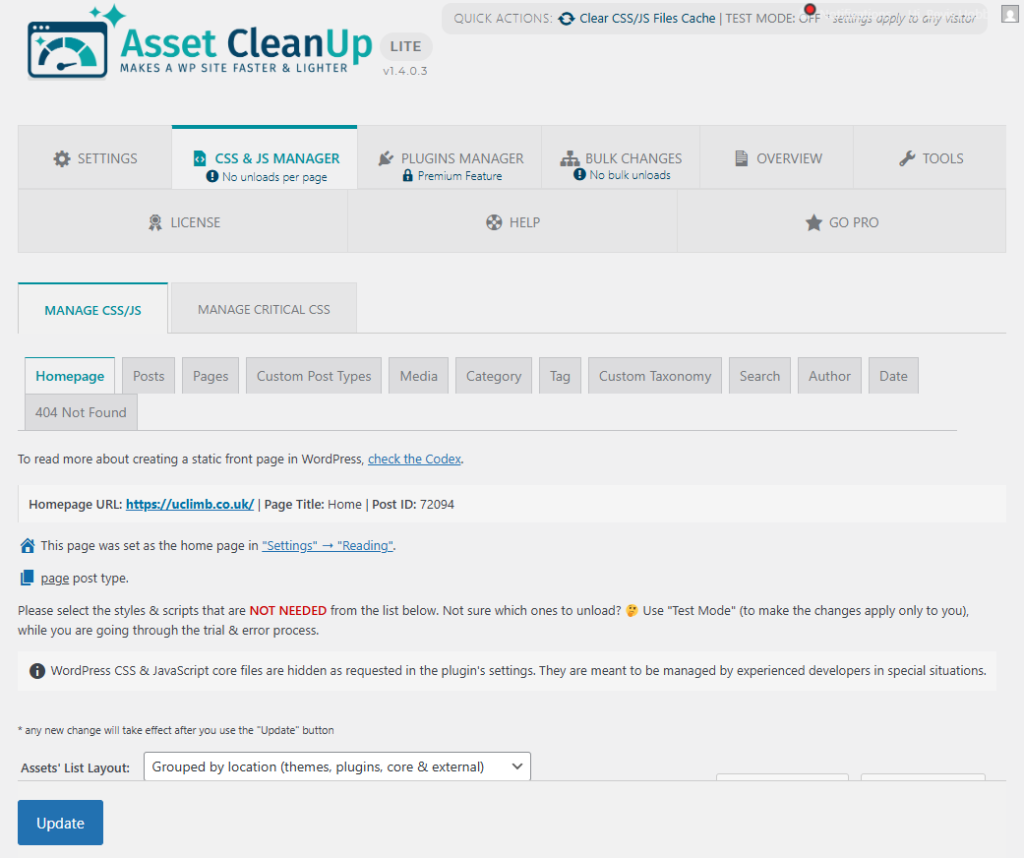
7. Asset CleanUp: Page Speed Booster
Asset CleanUp allows you to unload unnecessary CSS and JavaScript files which aren’t required on specific pages or posts. By reducing the number of HTTPS requests and removing unused scripts, this plugin helps to streamline your website and improve loading times.
8. Perfmatters
Perfmatters is a high-performance, lightweight plugin which disables unnecessary and outdated WordPress options which slow down your website. The plugin features disabling certain scripts on a per-page basis, implementing lazy loading and managing DNS prefetching. Perfmatters is an excellent addition to a caching plugin for fine-tuning the performance of your website.
9. FlyingPress
FlyingPress is an all-in-one speed optimisation plugin, offering caching, image optimisation, lazy loading, and font optimisation. It is known for the simple interface and automatic application of best practice settings, making it suitable for beginners and advanced users alike.
10. Cloudflare (Official Plugin)
While not a typical caching plugin, Cloudflare’s official plugin integrates into your WordPress site with the Cloudflare Content Delivery Network. It helps improve global load times, provides security enhancements, and supports automatic cache purging and image optimisation through the Cloudflare platform.
11 Tips and Tricks to help you design an inspiring WordPress website that also loads fast
A quick note:
Time is money!
There’s no need to spend hours trying to create the perfect website, even if you have no budget.
Contact us today for free help and advice.
If required, we can also assist you in building your website, or even take over the whole project, if you decide your time would be better spent elsewhere.
But that’s your choice… the initial consultation and advice is totally free of charge.
Tip 1) Start with a clean, fast-loading, well-programmed WordPress Theme, which is also highly customisable
Some of the very fastest wordpress themes like Iconic One are also very limited and basic – the reason for their speed is that they don’t come pre-loaded with many customisation options, so if you don’t like the appearance of the theme ‘out of the box’ then pick a different one, as you won’t be able to do very much with it, other than changing the colours and adding your own logo.
OceanWP is well-programmed to be lightweight and fast-loading, and also offers customisation of virtually any part of the theme, so you can use this one theme to create a huge range of different looking websites. OceanWP even allows you to turn off the CSS and JavaScript code for features that you decide not to use, just make sure you install their ‘Ocean Extra’ plugin to allow this.
Like most other Themes, OceanWP offers the option to download pre-made templates or ‘demos’ that have a whole range of smart styling features pre-loaded for a ‘ready made’ website. A word of caution here though, the moment you download a ready-made demo, your website will typically slow down from page speed scores of around 90/100 down to more like 30 to 50/100, so downloading demo websites is definitely not an option if you want your site to load fast.
One unique feature to the OceanWP website is that its premium website adds extra functionality via a set of extra plugins, again this is great for speed as you can choose to install just the plugins you want, e.g. maybe just the sticky header one, and leave the rest – installing all of them if you only need 1 or 2 will only slow things down unnecessarily.
Other popular WordPress Themes that are fast, lightweight, and well coded, whilst offering a reasonable amount of customisation include Generate Press and Astra.
Tip 2) Next, only add in the plugins you need, and steer clear of all page builders
Page builders are one of the biggest ways of slowing down your website. Unfortunately, most ‘off the shelf’ pre-made website templates, such as the ‘demos’ that come with most WordPress themes, are made using page builders, which can add a massive drag on your website’s speed.
For example, if you start off with a clean new installation of the OceanWP theme that we recommend, you’ll likely have a mobile page speed score of around 90/100, assuming you’re on a reasonably fast hosting package.
Then if you install one of the exquisite OceanWP demos, you are likely to see a decrease in the speed, with mobile scores falling between 50 and 70/100, which increases the loading time by a few seconds.
Then add in a few more plugins on top of that, and your page load speed can quickly increase to a frustrating 10 seconds or more, massively impacting your website’s bounce rate.
Clearly there has to be a better way…
Tip 3) Use the WordPress ‘Gutenberg’ editor as your page builder, along with a few carefully selected Gutenberg plugins
WordPress has its own in-built page builder, known as Gutenberg.
Gutenberg is the lightest WordPress page builder of them all – in fact, it comes part and parcel with every WordPress installation regardless, so you had might as well make use of it, because doing so will not slow down your website at all.
To be clear, Gutenberg doesn’t take over editing the entire page (although future releases may do according to WordPress), but at the moment, Gutenberg is a ‘block builder’ – you can construct the central part of your page using Gutenberg ‘blocks’ – the surrounding header, footer, and any sidebar/s are all part of the WordPress theme, these bits need to be edited using the Theme editor or WordPress customiser.
The default standard selection of Gutenberg ‘blocks’ available for building your website is very limited and doesn’t give you much scope for creative visual designs.
There are numerous Gutenberg-compatible WordPress plugins that essentially gives you extra collections of Gutenberg blocks to use for more advanced page layouts.
But it’s easy to get carried away adding in numerous Gutenberg plugins as you try to work out how to achieve various visual effects, and some add more ‘bloat’ to your website than others.
Kadence Blocks is one of the most comprehensive Gutenberg plugins that is also very lightweight – this is the only additional Gutenberg block that we have used on our own UClimb website.
Other common Gutenberg plugins that add a heavier load of bloat, to steer clear of if you want the fastest possible load speeds, are Advance Gutenberg and Atomic Blocks – neither of these add much design functionality in addition to what can be achieved with Kadence, and they seem to drag the load speed more.
Another very comprehensive Gutenberg blocks plugin for great designs that is reasonably lightweight and fast loading is ‘Container Row‘ by Koiken Blocks – this one is great if you want the most design features we have yet to come across in a single Gutenberg blocks collection plugin.
Tip 4) Use the Hello Elementor Theme
Elementor is known as one of the fastest and most flexible page builders available for WordPress. To make the most of its performance, pairing it with the Hello Elementor theme is highly recommended. Hello Elementor is an ultra-lightweight theme, adding only 6 KB to your website’s frontend load. In essence, it is a barebones theme that provides only the essential structure needed to build fully custom designs with Elementor.
Because Hello Elementor is stripped of unnecessary features and code, it creates an ideal foundation for achieving excellent website loading time. When combined with a well-optimised Elementor setup, it is possible to achieve very fast loading times, provided that pages are built carefully with performance in mind. This means avoiding bloated plugins, using optimised images, and keeping animations and widgets minimal where possible.
For businesses looking to improve their website’s speed and Core Web Vitals, the Hello Elementor theme offers a clean slate. With a precise build process, it ensures that your website is not weighed down by bulky theme frameworks, allowing your content and design to load as efficiently as possible.
Tip 5) Experiment on a test website, and then re-build from scratch once you’ve decided what plugins you need
This tip is for those who want the very fastest website possible, and can be skipped if you’re happy with a fast but not ultra-fast loading website.
Whilst it is possible to delete plugins that you have tested and then decide you no longer need, they tend to leave traces behind, which can slightly slow down your website.
Therefore if you find you need to experiment with many different Gutenberg plugins before you get the visual results you want from 1 or 2 of them, once you’ve picked your plugins it’s advisable to re-install wordpress from scratch and start your build again with just the selected plugins, to avoid living with hidden background bloat from plugins that you no longer use.
Of course, there are ways to remove the bloat and clutter from uninstalled plugins, but these are for more advanced web developers, see this helpful article for further details.
This tip is also not applicable if you take one of our recommended plugins above, and find that you can do everything you need with that one plugin.
Don’t forget:
You can request FREE website design help today.
Tip 6) Select a fast hosting package
Our UClimb hosting packages all offer masses of broadband width, SSD Flash storage, UK-based servers, and also the option to use the Litespeed plugin (not all hosting packages are Litespeed compatible). See tip 6 below to learn about Litespeed speed optimisation.
But there are plenty of great alternative hosting packages out there if you decide not to use UClimb for your web hosting.
Bluehost, Siteground, and Guru, are some great picks for fast WordPress website hosting.
Tip 7) Install an advanced website speed optimisation plugin
With 100s of potential caching plugins, gzip plugins, image optimising plugins, minify plugins, etc, all offering to speed up your website, which should you choose?
Installing several website speed optimisation plugins is not a good idea, as the functionality of many of them overlaps, and you may get plugin conflicts from several plugins all trying to do the same job.
One of the very best plugins to handle all of your website speed optimisation is Litespeed Cache. This plugin has a simple default interface for tasks like caching and image optimisation but also has an advanced section where you can perform advanced speed optimisations like deferring and minifying critical CSS and javascript. The advanced settings can make a big difference to the speed of your website’s loading time, but use them with care – the best approach is to clear your cache and then test your website following each adjustment because some of the advanced settings can interfere with how your website loads and functions. Certainly, choosing the maximum speed optimisation option on every single advanced setting is very likely to stop something crucial working!
As mentioned in Tip 5, Litespeed Cache is only available if your hosting package is compatible. If your website hosting isn’t set up for use with the Litespeed Cache plugin, then try the Hummingbird plugin. Hummingbird doesn’t have quite so many advanced options for speeding up your website but nevertheless offers all the essentials and it offers a great comprehensive package of tools to speed up your website, all within 1 easy-to-use plugin.
Ideally, if you’re doing a re-brand at the same time as designing your website, you should pick a font for your brand which happens to match the default font for your website theme. Because every time you override the default theme font anywhere on a web page, you slow down the page loading speed slightly. Over-riding the font multiple times on every page of the website can have a big impact on the website speed.
Having Google Fonts enabled is an extra speed drag, as you unwittingly pull in the styling script associated with all of the 100s of Google Fonts, when you only need 1 or 2 of them. If your website theme happens to use one of the Google Fonts, then that’s not an issue, just leave the font as ‘default’ and it will use the default Google Font without necessarily loading all the others.
Font Awesome is a very common addition in many themes page builders, it is basically a collection of 1000s of common icons, including the very common ‘return to top of page’ arrow for example. If you can do without this icon package, and create your own icons where necessary, or use a more limited set from within the 1 or 2 Gutenberg plugins you added, then this will help the load speed too – Font Awesome will often appear high on the list of items affecting the website load speed when you run a speed test.
Tip 9) Correctly size images before uploading into the WordPress image gallery
Putting too large (or too small) images into sections of your webpage forces WordPress to re-size these images as part of the page load, slowing down the speed.
Check the size requirements of each part of your web page, and edit and crop the image before uploading it, to the exact size required (measured in pixels).
You don’t need expensive software or experience with graphic design to re-size images to the correct pixel dimensions – if using a Windows PC then the default Windows 10 ‘Photo’ program has all the tools you require and is very quick and easy to use.
Tip 10) Compress images and videos, and use the best possible formats
It is so common to find websites that have images that are over 1MB in size, and compressing these same images to under 100KB often has zero impact on the visual effect to the naked eye.
Again, simple programs like the default Windows Photo Viewer can be used to resize images, simply choose ‘resize’ from the 3-dots menu at the top right corner, and then choose a standard option or set a custom size.
Modern image formats like WebP can help website page load speeds, and wherever possible, use vector graphics for simple icons – vector graphics don’t get fuzzy at any size, and if the vector icon or logo is not complex, the size can be as little as 10 or 20KB, and a reasonably sharp jpg or png image equivalent might end up as over 100KB if a large pixel size is needed.
A great free website for creating vector graphics online is Vectr.
When it comes to videos, the first step is to upload the video to a platform like YouTube, Vimeo, or Wistia.
Once you have your video on one of these well-optimised video streaming platforms, you are ready to embed the video into your website’s page.
Uploading a video into WordPress is quicker and easier, but also can massively slow down a web page, as it’s hard to compress any video much below 5MB, and longer videos can easily be over 100MB in size. So avoid uploading videos, and stick to embedding them instead.
Tip 11) Avoid using WordPress Theme Panel ‘My Library’ templates where possible
Many less skilled WordPress users don’t even know these templates can be created, so this tip isn’t relevant if so!
Templates that you create (like standard mini web-pages) within the ‘My Library’ section of the theme, and then load into areas of your theme like maybe the Top Bar are a great way to add in features like click-to-call hyperlinks that aren’t possible using the standard text-only editor, but just be aware that as these templates load when the page loads, they will slow down every page on your website.
Our Reviews
Posted on Nick HopperOctober 30, 2024. Great customer Service. These people really know their stuffPosted on Matthew NoadesJune 17, 2024. UClimb have been great to work with - extremely helpful and knowledgeable. I was surprised how quickly they redesigned my website and were extremely understanding when we fussed over all the little changes. I would definitely recommend them.Posted on Caroline KontosJune 4, 2024. I recently had the pleasure of working with UClimb on behalf of Scenario Architecture and I was very satisfied with their service. Their team delivered a comprehensive SEO audit that was both detailed and insightful, helping us understand exactly how our website was operating and where the gaps were that needed improvement. Communication throughout the process was excellent. They kept us informed at every step, answered all our questions promptly, and provided clear explanations for their recommendations. This level of transparency and engagement is rare and much appreciated. The reporting was top-notch, offering us a clear and comprehensive roadmap for optimising our site and improving our search rankings and how to prioritise the next steps. It's evident that UClimb is committed to quality service and client success.Posted on KleanSTONEJune 22, 2023. The UClimb team helped us with optimisation of our e-commerce site and SEO support. We were very happy with all of their work and the results spoke for themselves. They were quick to respond, patient and very professional. Would highly recommend.Posted on Nishana ShukoorNovember 2, 2022. Excellent team to work with! Highly knowledgeable, proactive, and open to working with us to figure out what is best for our company’s specific needs. We were especially impressed with their prompt and open communication. Would highly recommend them to anyone looking for SEO and digital marketing expertise.Posted on Rob TuffinOctober 27, 2022. Professional and quick-responding SEO agency with a focus on ROI. Frank and pragmatic approach, including an honest appraisal if ROI isn't forthcoming or as expected. I would highly recommend U-Climb, a safe pair of hands for your website optimization.Posted on Carlton SimpsonSeptember 13, 2022. Great company to deal with and good communication. Highly recommendedPosted on Luan LazarusSeptember 7, 2022. UClimb have been very supportive and transparent in helping us to achieve better SEO results, we look forward to working with them long in to the future and increasing our results and incoming enquiries!Posted on Damilola SogbesanSeptember 6, 2022. Thanks for all the work and research on the service and really appreciate and like the changes you have made on the website.
Author
-
Adam started off in Journalism, where he spent 10 years as a sub-editor at the Press Association. While at PA, he joined a burgeoning team focusing on helping clients improve their SEO. After learning the ropes, he left to join an SEO agency, where he became head of content. Educated in both humanities and the sciences, Adam has experience writing SEO-optimised content for a breadth of sectors and industries, from biomedical organisations to door manufacturers, and everything in between.
View all posts